
What happened to the thing we sold.
A project linked to the customer and the deal it came from, the people on it, the milestones it is judged by, and work that lands in each person’s own task list.
- Linked to the won deal
- Milestones that flag when late
- Estimated vs actual hours
SimplCRM’s projects module records the work a business takes on — a coded project with a customer, the won deal it came from, a manager, a branch and start and due dates — and runs it through the tasks people already use. Project tasks carry estimated and actual hours and appear in the assignee’s own task list; milestones are flagged when they pass their date unmet, and progress is shown as tasks done of tasks planned.
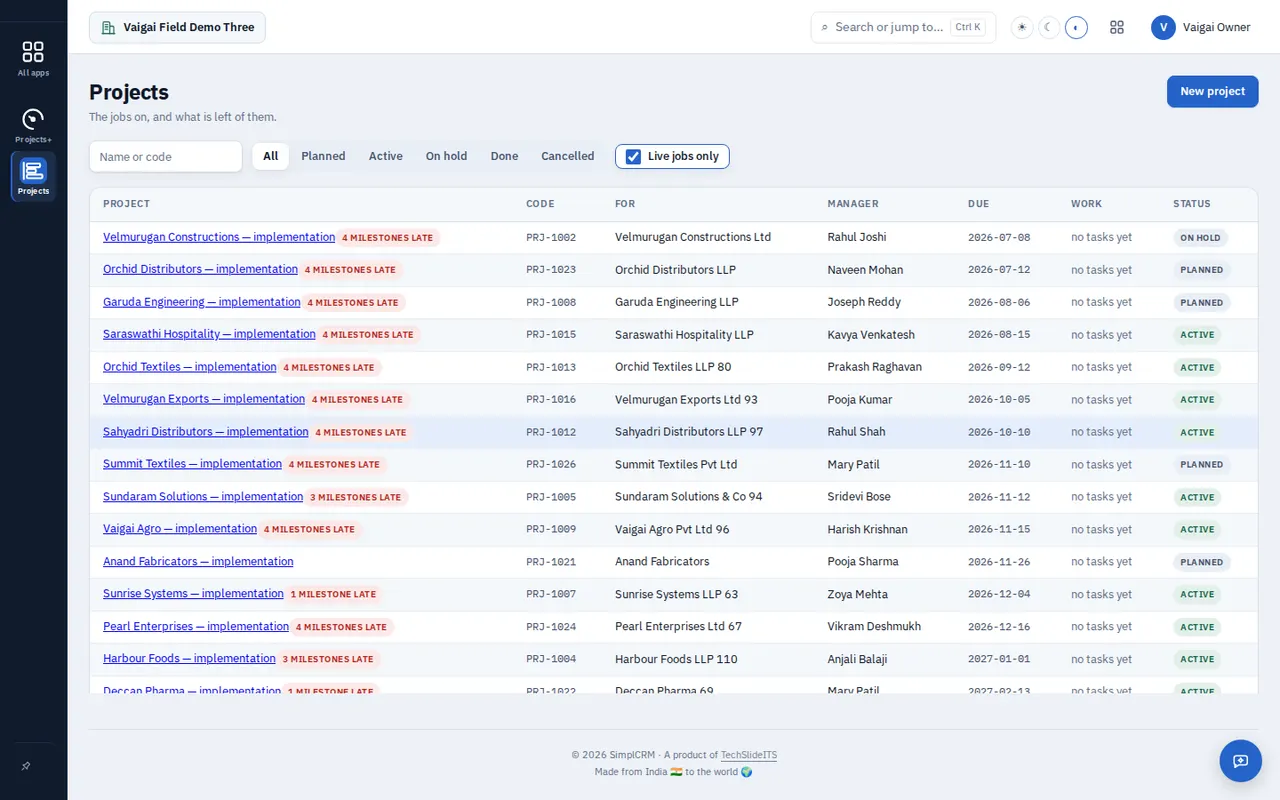
The jobs on, and what is left of them
Each project with its code, the customer it is for, its manager, its due date, its work and its status — and a red flag for every milestone that has passed its date unmet.
- Work
Project tasks are tasks
The project’s Work tab is the Tasks screen filtered to the project, so a task reaches the assignee’s day, the morning agenda email and due reminders like any other.
- People
Allocated, with a role and dates
Employees are put on a project with their role and the dates they are on it. The manager is an employee too, so the person running the job does not need a login.
- Discussion
The conversation stays on the project
Notes, calls, meetings and to-dos are logged on the project’s timeline, and colleagues can follow it, as they would a deal or a company.
What is running, and what is late
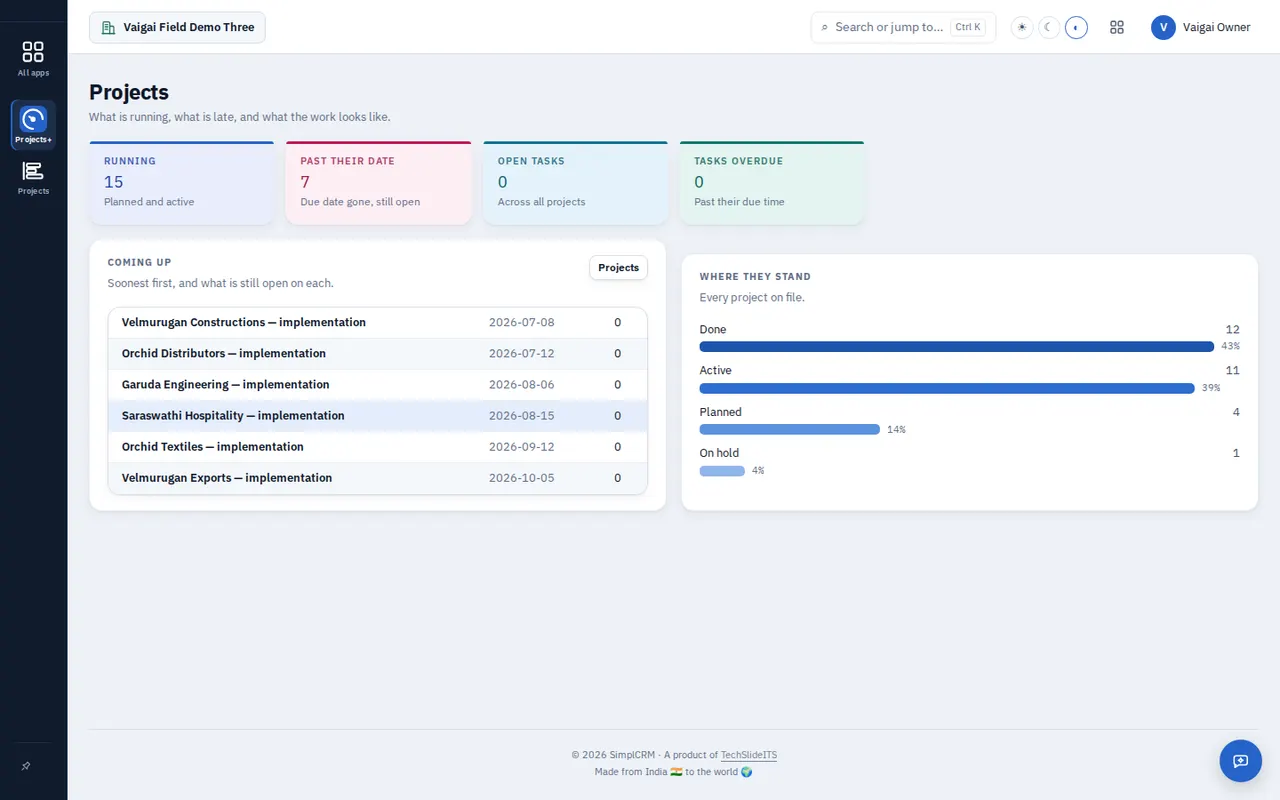
The projects planned and active, those past their due date and still open, open and overdue project tasks, the jobs coming up soonest, and every project by status.
- Coming up
Soonest first
The next projects due, each with how much work is still open on it — the list to read before the weekly meeting.
- Where they stand
Every project on file
Done, active, planned and on hold as bars, so a growing pile of jobs on hold is noticed before a customer asks about one.
The work, in everybody’s own list
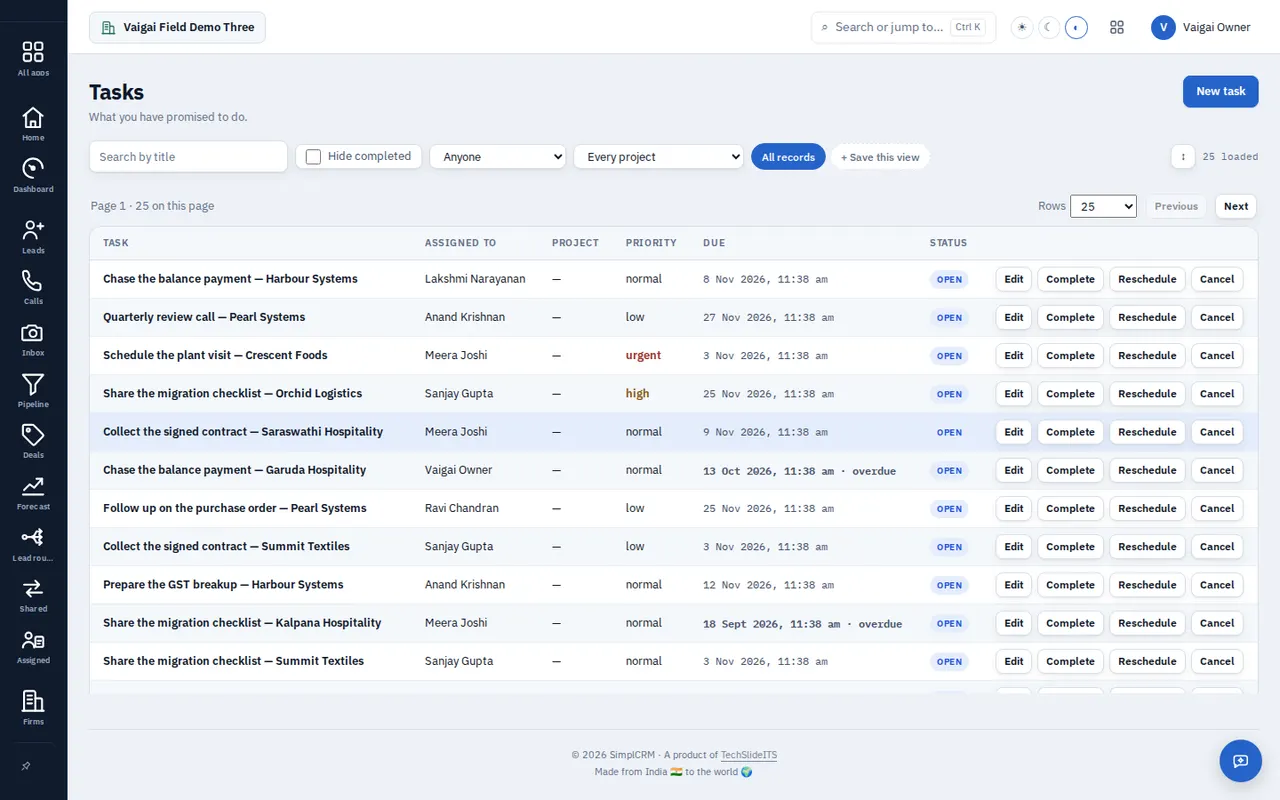
Project work sits on the same Tasks screen as every other promise — filter it to one project, or see it beside the calls and follow-ups of the day.
- Filter
Every project, or one
Pick a project to see only its work, a person to see only theirs, hide what is complete, and save the combination as a view.
- Act
Complete, reschedule, cancel
Each row carries its own buttons, so closing the week’s work does not mean opening every task.
The dates on a month
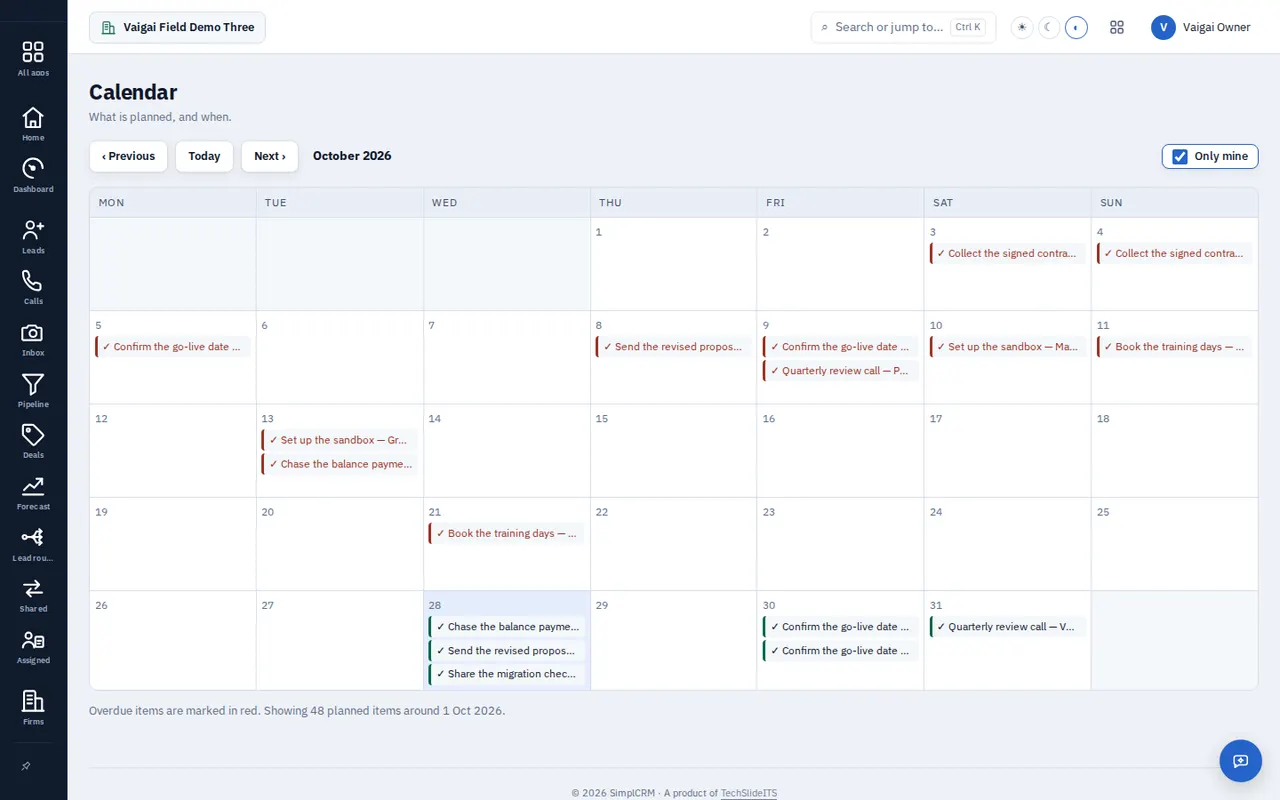
Planned calls, meetings, to-dos and tasks on a calendar that starts on Monday, with overdue items in red and a switch between your own work and everybody’s.
What a project holds
- Code
- From the workspace’s number series, or your own codes kept as they are
- Status
- Planned, active, on hold, done or cancelled
- Customer and deal
- Optional links to the company and the deal the work came from
- Manager and branch
- The employee running it, and the branch it belongs to
- People
- Employees allocated, each with a role and from and to dates
- Milestones
- Named dates in order, marked when met, flagged when overdue
- Work
- Tasks with assignee, due date, milestone, estimated and actual hours
- Invoices
- An invoice can be raised against a project
How a team uses it
What does the projects dashboard show?
The projects that are active, those past their due date, open and overdue project tasks, projects by status, active projects with no manager, and project tasks nobody is assigned to. It answers the Monday-morning question — which job is closest to being late — and the project list is ordered by due date for the same reason.
Who can see and change projects?
Three permissions decide it: read, which shows the whole list; write; and manage. The built-in Sales manager role can read projects, to see what became of what was sold. A person’s own project work needs no project permission at all, because it reaches them as tasks.
Who is the projects module for?
For a business whose sale is followed by work: an installer fitting what it sold, an agency delivering a campaign, a software firm running an implementation, a contractor fitting out a showroom. The thing it answers is what a CRM on its own cannot — what happened after the deal was won, who is on it, and whether it is on time. It is deliberately simple; a business that needs Gantt charts and capacity planning needs a dedicated tool alongside it.
How do I start a project from a won deal?
Create a project, name the customer company and the deal it came from, and give it a manager, a branch, start and due dates and a status. Then put the people on it with their roles, add the milestones it will be judged by in the order they fall, and add the work as tasks — each with an assignee, a due date, the milestone it belongs to and an estimate in hours. A project cannot be given a due date before its start date, and a person cannot be allocated to it ending before they begin.
Can I keep the project codes I already use?
Yes. Leave the code empty and the next one comes from the workspace’s number series, the same series that numbers quotations. Type your own and it is kept as it is — a business moving off a spreadsheet already has codes, and renumbering them helps nobody.
How do milestones work?
A milestone is a named date in the project’s order of events: survey done, materials ordered, handover. It is marked met with the date it was met, and a milestone marked by mistake can be un-marked. A milestone whose date has passed with nothing marked counts as overdue, worked out by the server rather than the screen, and the project list shows how many each project has.
What if a task is dropped or put off?
Cancelled and deferred tasks leave both counts — the tasks planned and the tasks done — so abandoning a piece of work moves the project forward instead of leaving it short for ever. Hours work the other way: a task whose actual hours pass its estimate is highlighted on the Work tab, which is the honest answer to “did this take longer than we thought”.
Questions people ask
What does SimplCRM’s projects module do?
SimplCRM’s projects module records the work a business takes on: a coded project with a status, start and due dates, a manager, a branch, the people allocated to it and its milestones. Its work is ordinary tasks — with estimated and actual hours — so a project task appears both on the project and in the assignee’s own task list.
Can a project be linked to a customer and a won deal?
Yes. A project can name the customer company and the deal it came from, so “what happened to the thing we sold” has an answer; the built-in Sales manager role can read projects for that reason. Both links are optional, because some projects — a new website, moving the workshop — have no customer at all.
How is project progress measured?
As counts, not a typed percentage: tasks done of tasks planned, with cancelled and deferred work left out of both, and the number of milestones that are past their date with nothing marked done. Tasks whose actual hours have gone over the estimate are highlighted on the project’s Work tab.
Does it include timesheets, Gantt charts or resource planning?
No. Hours are entered on each task as an estimate and an actual, not recorded by a timer or a timesheet, and there is no Gantt chart. Putting someone on a project records their role and the dates they are allocated, but no capacity or utilisation figure is worked out.
Turn a won deal into a job with dates.
Create a project, link the customer and the deal, put the team on it and give it its milestones.