
Match
By source, business or campaign
A rule matches fragments of the lead’s source, the collaborating business it came from, or its marketing campaign. Rules are checked in order and the first match wins.
Rules with a trigger, conditions and steps across sales, support and invoices, a dry run on a real record before anything switches on, and routing rules that put every new lead in front of somebody.
SimplCRM’s workflow automation runs rules made of a trigger, conditions and steps. The trigger is an event on a record such as a deal moving stage, an invoice being paid or a case being resolved; conditions use a fixed set of operators; steps update fields, create tasks, log activities, send templated emails, call webhooks or branch. Rules start switched off, can be dry-run on a real record, and every run is logged. Separate lead routing rules assign new leads by source or campaign.
What each rule watches, whether it is on, and what happened the last time it ran.
Only comparisons the engine runs can be saved, so a rule cannot sit there with a condition that never matches and no sign why.
Pick a record and see whether it matches and what each step would do. Nothing is written and nothing is sent.
Each run records the event, the record, its status and a log of each step, so “did it fire?” has an answer.
| Part | What it can be |
|---|---|
| Records | Accounts, contacts, leads, deals, tasks, quotes, cases, invoices, projects, supplier bills, products, payments |
| Events | Created, updated, deal stage changed, won, lost, lead converted, task completed, quote sent, accepted or rejected, case resolved or commented, invoice issued, paid, cancelled or credited, payment received or made |
| Operators | Equals, not equal, greater or less than, contains, does not contain, starts with, in, not in, empty, not empty, changed, changed from, changed to |
| Matching | All conditions or any of them, up to 20 |
| Steps | Update record, create task, log activity, send email, call webhook, branch with then and else |
| Limits | Up to 20 steps; branches nest three deep |
The routing screen: leads no rule has matched yet, leads with an owner still waiting for a first reply, how many were routed today, and the share answered within the target.
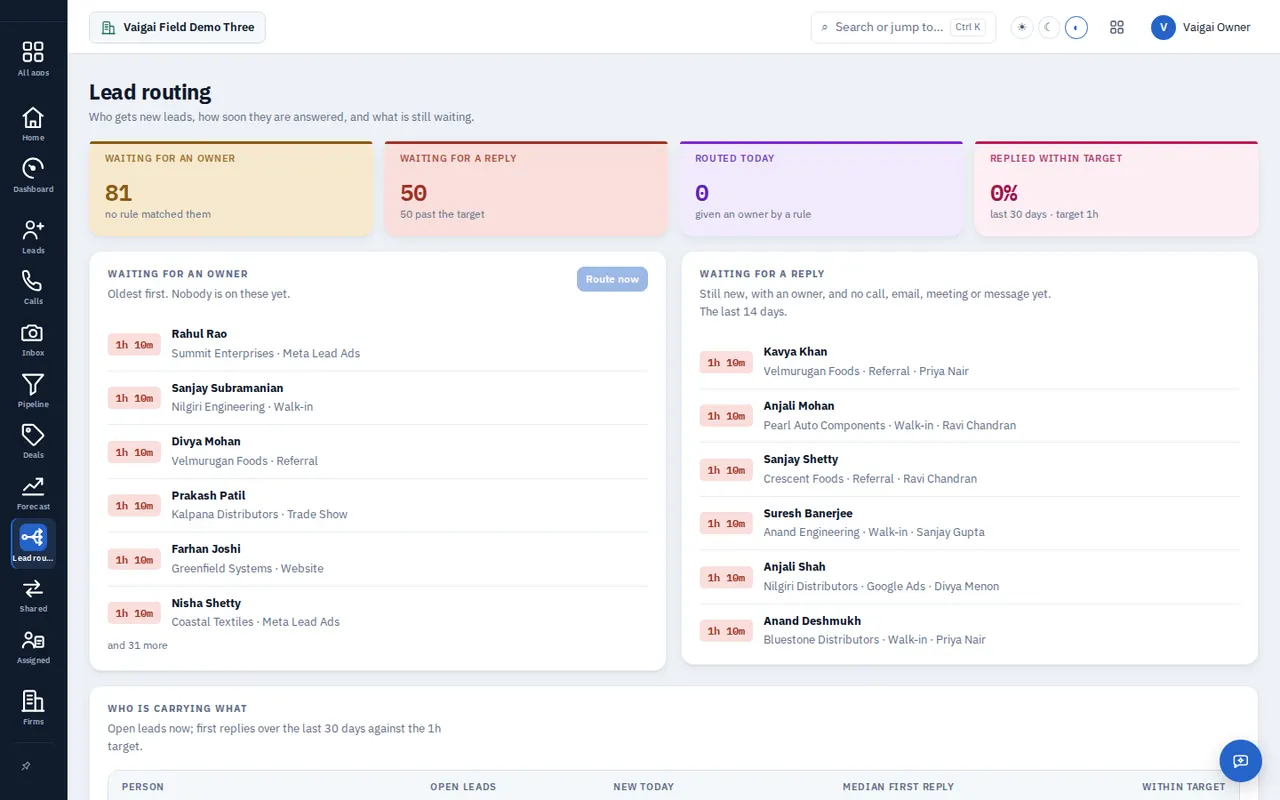
Leads nobody is on yet, with how long each has waited, where it came from, and one button to run the rules over all of them.
Leads that have an owner and are still new, with no call, email, meeting or message logged — the leads a fast first reply would have won.
Each person’s open leads, the leads they were given today, their median first reply and the share within the target, over the last thirty days.
Rules for leads that arrive with no owner — from a web form, Meta lead ads or a collaborating company.
A rule matches fragments of the lead’s source, the collaborating business it came from, or its marketing campaign. Rules are checked in order and the first match wins.
Give every match to one person, or deal them in turn across a list, with the next lead going to whoever follows the last one dealt.
Set the minutes a new lead may wait for an answer. Leads past it alert their owner, or the person you choose to escalate to.
The routing screen lists unassigned leads, each person’s load and response times, and runs the rules over the waiting queue in one action.
Make a rule on deals with the event deal won, add a condition if it should only apply above an amount, and add a create-task step with a title, a due date a number of days out, a priority and an assignee — the deal’s owner or a named person. Test it on a recently won deal, then enable it.
Yes. A send-email step uses one of the workspace’s email templates and goes to the customer, the record’s owner or the assignee — a role, never a typed address. On a quotation, an invoice or a proforma it can attach the document as a PDF.
Yes. A webhook step posts to an http or https address with an optional secret, so an invoice being paid can tell an ERP or a warehouse system. For integrations that should hear about every change, SimplCRM also has outbound webhooks and a REST API.
People with permission to change workspace settings. Rules act on everybody’s records without anyone pressing a button, so they sit with the same permission as tax, numbering and email settings — and every run is logged, step by step, for anyone with that permission to read.
A SimplCRM workflow rule waits for an event on a record — a deal won, a lead created, an invoice paid — checks its conditions against the record as it is now, and runs up to 20 steps: update fields, create a task, log an activity, send a templated email, call a webhook, or branch on further conditions.
Accounts, contacts, leads, deals, tasks, quotations, support cases, invoices, projects, supplier bills, products and payments. Each has its own events, such as deal stage changed, quote accepted, case resolved, invoice issued or payment received.
Yes. New rules are saved switched off. A test run takes a real record and shows whether the conditions match and what each step would do, without writing anything or sending any email. When it is right, enable it; a separate disable switch stops a rule at once without losing its settings.
With lead routing rules, checked in order. A rule matches on the lead’s source, the collaborating business it came from or its marketing campaign, and gives the lead to one person or round-robin across a list. A first-response target flags leads nobody has answered in time and tells the owner, or the person you choose to escalate to.
No. A chain of rules triggering each other stops at five levels, a rule never reacts to a change its own run caused, and each workspace has an hourly ceiling on runs. Each run is recorded with its status and a log of every step, so a rule that misbehaves is visible.
Pick the follow-up your team forgets most often, make it a rule, and dry-run it on last week’s deal.