
A route made in a minute, and a record of whether it was kept.
Pick the customers, let the maker put them in order by distance, publish the day — then see where the team is now and, at the end, how closely each person followed the plan.
- Road distances or straight lines
- Google Maps or OpenStreetMap
- Tracking only with consent
SimplCRM’s route planning turns a list of customers into an ordered, timed day: the route plan maker sorts the stops by distance — straight lines, OSRM or Google road distances — and cuts what does not fit. During the day the Field app shares the rep’s position only between Start my day and End my day, with their consent, and afterwards SimplCRM scores the day for stops covered, order, timing and time on the planned route.
Pick the customers, then make the route
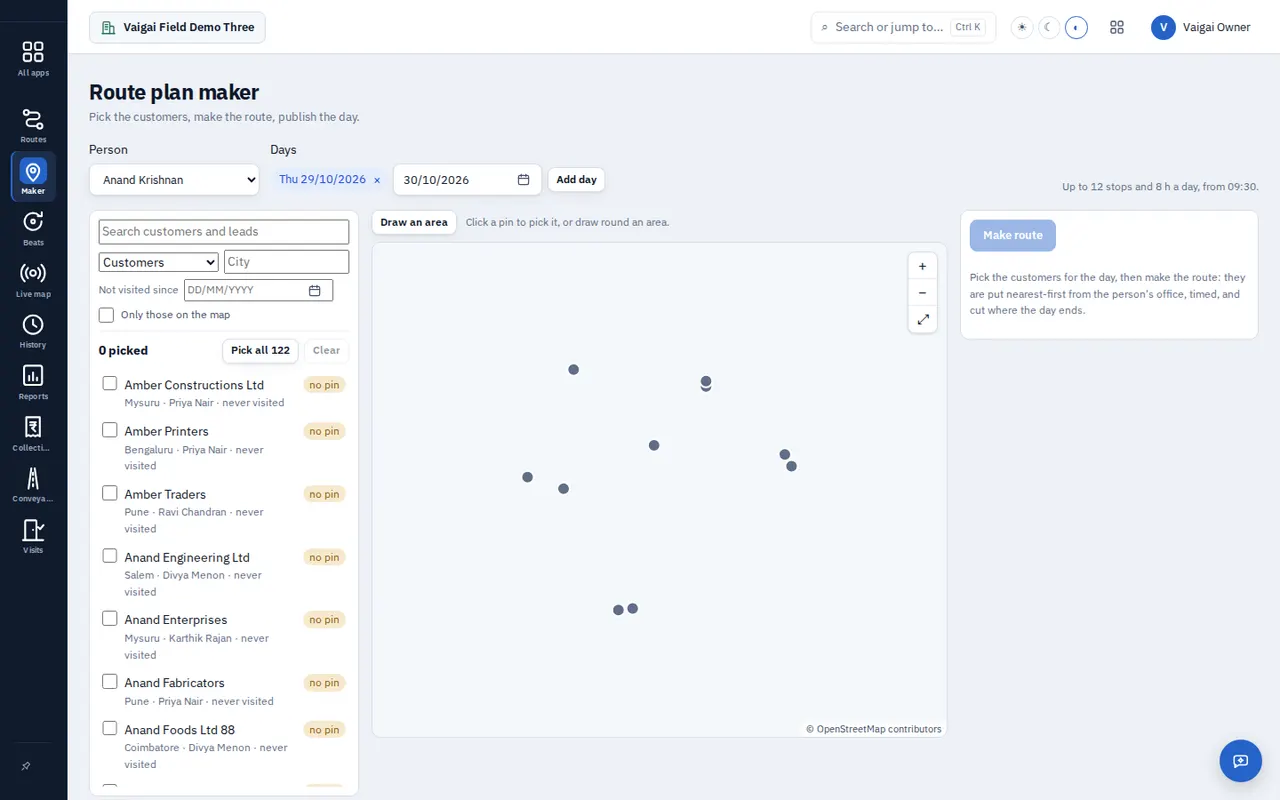
Choose a person and one or more days, pick stops from the list or the map, and Make route puts them in order, times them and cuts where the day ends.
- Pick
From a list or off the map
Search customers and leads, narrow by city or by “not visited since”, tick them one at a time, pick everything listed, or draw round an area on the map.
- Limits
The day’s length is a setting
The maker shows the limits it works to — so many stops and so many hours a day from a start time — and names what did not fit rather than squeezing it in.
- Pins
No pin, no surprise
A customer without a pin says so in the list, so the gap is found while planning, not by a rep standing in the wrong street.
Who is going where, day by day
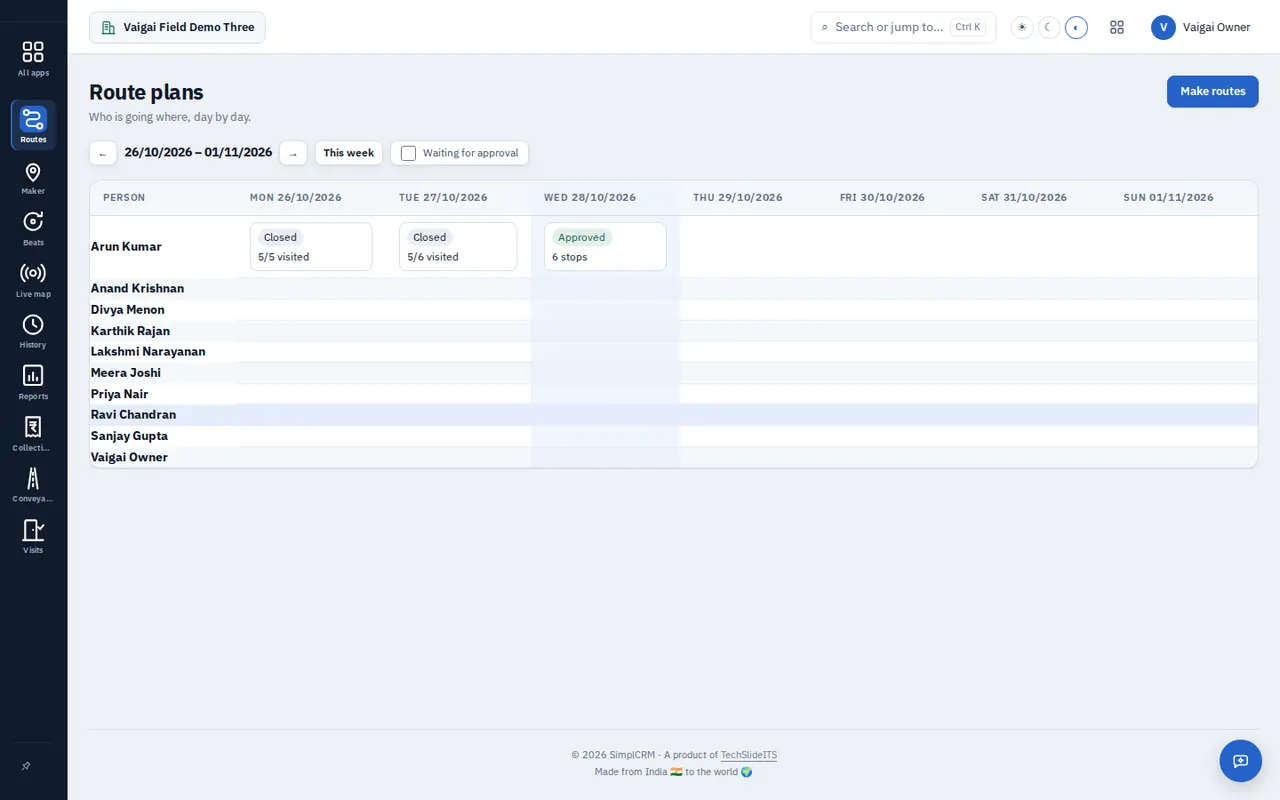
A person a row and a day a column: each plan with its state, and a closed day with how many of its stops were visited.
- Approval
Plans waiting for a manager
Where a workspace wants rep-made plans approved, one tick narrows the week to those waiting for a decision.
- Closed
Visited of planned, at a glance
A finished day shows 5 of 5, or 5 of 6, so the gap is visible before anybody opens a report.
Or the rep plans their own day
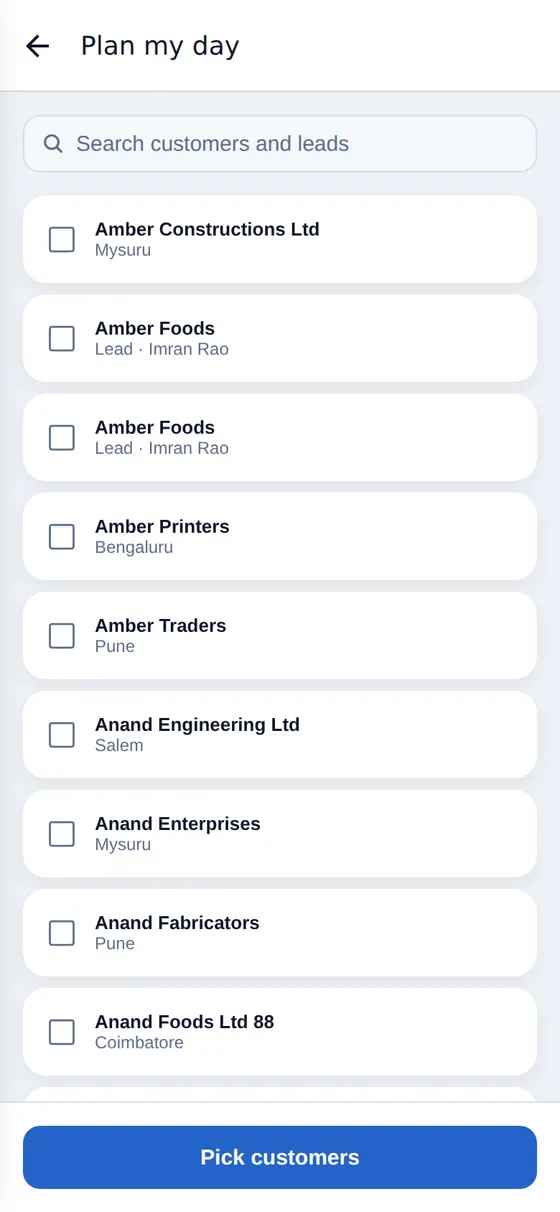
Plan my day in the Field app: tick the customers and leads to see, and the same maker orders them.
- Self-planned
For reps who know their patch
A rep who knows which shops need a visit today plans the day on the phone, and the route is made and timed the same way a manager’s would be.
- Checked
Approved, if you want it to be
A workspace can require a manager to approve a self-made plan before it counts as the day’s plan.
Where the team is now
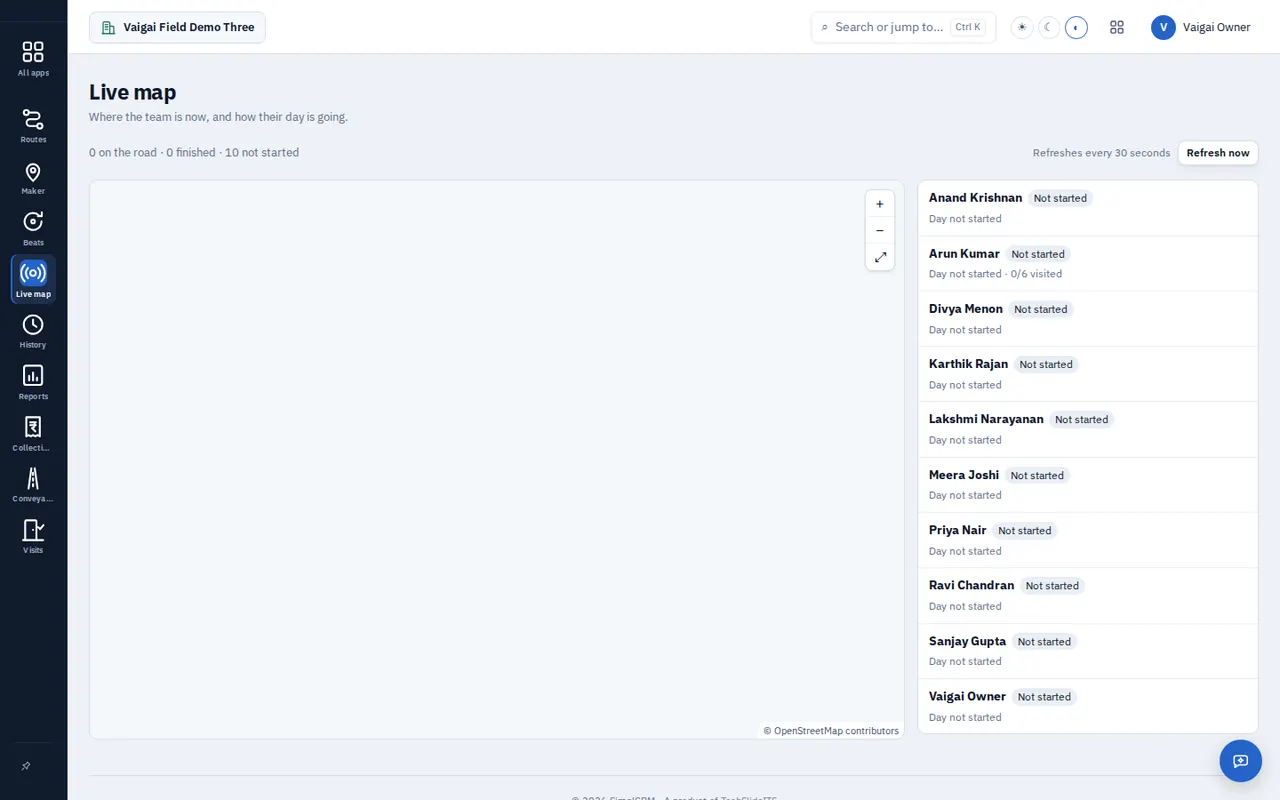
Refreshed every thirty seconds. In this picture nobody has started their day, so everybody is listed and nobody is on the map — positions are sent only between Start my day and End my day.
- Status
One line per person
On the road, finished or not started, with stops visited of those planned. A pin appears only for somebody whose day is running.
- Consent
Nothing before the day starts
The map shows what the phone sent during the shift and nothing else, which is the promise the consent text makes.
Did they follow the plan?
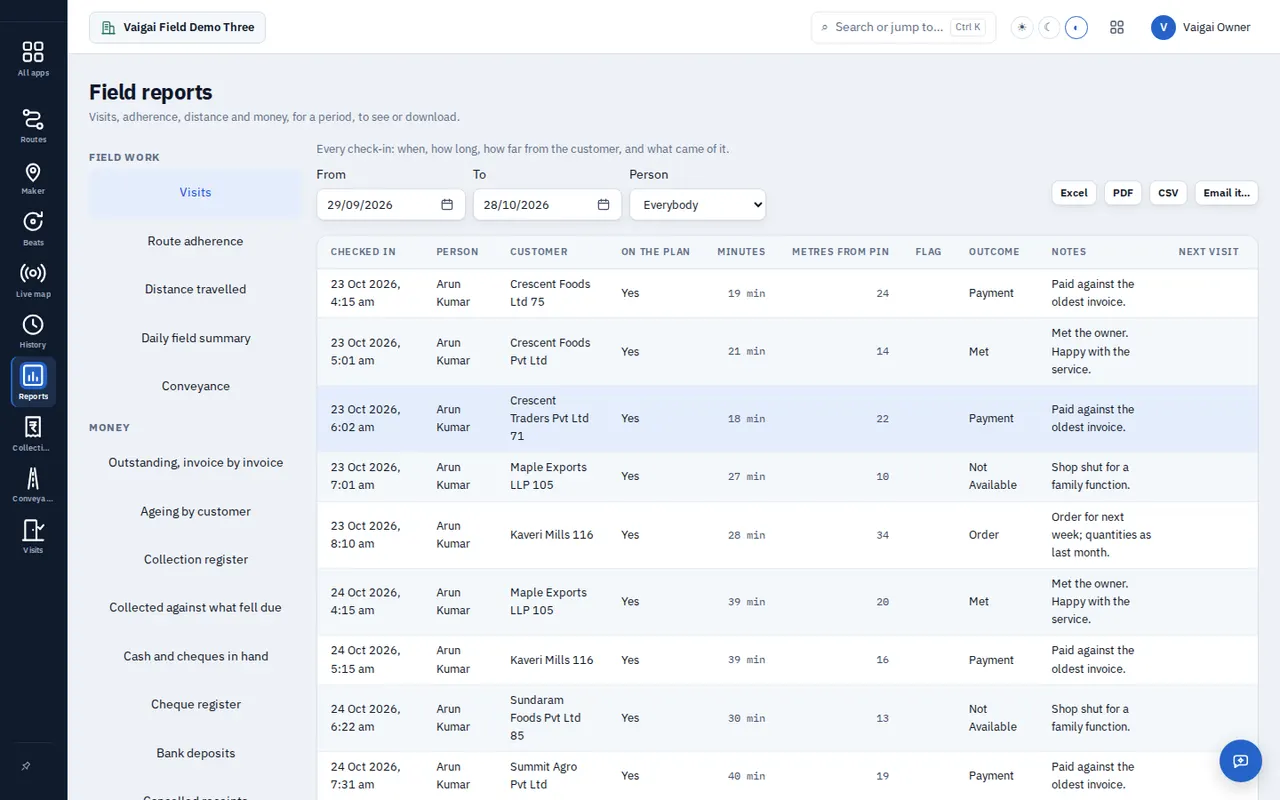
Visits against the plan, route adherence, distance travelled, the daily field summary and conveyance — for any period and person, and to Excel, PDF or CSV.
- Adherence
Four scores, worked out
Covered is stops visited of those planned; in order is how much of the visiting order kept the planned sequence; on time is visits within the workspace’s window of their planned time; on route is the share of tracked time near the planned path.
- Days
A week as a grid
Route history’s Days tab puts the same scores in a grid, a person a row and a day a column, for a week or a month — the view a manager reads on Monday.
- Honest distance
Wobble is not travel
A step shorter than the GPS’s own uncertainty is a phone on a desk, not a journey, and a jump faster than 150 km/h is a bad fix. Neither adds kilometres.
From a customer list to a closed day
Pin the customers
A pin comes from the phone’s GPS at the shop, a click on the map, or the address looked up. Customers and leads both can be stops.
Make the route
Pick stops from a list — search, city, not visited lately — or off the map, one click each or by drawing round an area. Make route orders and times them.
Publish, or save as a beat
Publish saves the day as an approved plan on every date chosen. A rep can also plan their own day on the phone, and a workspace can require a manager to approve it.
Run the day
The Field app shows the next stop, checks in at each customer and tracks between Start my day and End my day. The live map refreshes every half minute.
Review it
Route history scores the day against the plan, lists its alerts, and the reports go out by email on whatever schedule you set.
The alerts, and what raises them
- Location switched off
- The phone reported its location was turned off during the day
- Mock location
- The phone said its position came from a mock-location app
- Not moving
- Within 150 m of one spot for longer than the workspace’s idle limit
- No signal
- No position received for longer than the no-signal limit
- Checked in away
- A check-in further from the customer’s pin than the visit radius
- Off the planned route
- Further than the set distance from the route for the set time
Planning questions, answered
How do beats work for repeat routes?
A beat is a day’s customers that repeat: every Monday, every other Thursday, or the first, second or last Saturday of the month. It is made in the route plan maker with Save as beat, and plans are generated from it up to twelve weeks at a time — four by default — skipping the person’s holidays.
How often does the phone send its location?
As often as the workspace sets: one interval while moving (by seconds or metres), a longer one while still, and how often the phone uploads what it has gathered. Battery level travels with each position and shows on the live map. Some Android makers stop background apps hard, so the Field app’s battery use should be set to Unrestricted; otherwise the route has gaps, and those show as no-signal alerts.
What does the live map show a manager?
One pin per person on duty, coloured by what their phone last said — moving, still, gone quiet or location off — with the day so far beside it: kilometres, stops visited of those planned, the customer they are with now and unseen alerts. A manager sees their own team, or everybody when they see every record.
Can tracking reports be emailed automatically?
Yes. Visits, route adherence, distance travelled, the daily field summary and conveyance — and the collection reports — can each be scheduled daily, weekly or monthly at a chosen hour, as Excel, CSV or PDF, to up to twenty addresses. On screen, every report filters by period and person and downloads in the same three formats.
Questions people ask
How does the SimplCRM route plan maker order stops?
It orders them nearest-first from the person’s office, then reverses any stretch of the route that makes the path shorter, until nothing improves. It times each stop, and anything over the stop limit or past the length of the day is named and left for another day rather than squeezed in. The order can then be changed by hand and the times follow.
Does route planning use road distances or straight lines?
Either, chosen in Settings: straight lines multiplied by a road factor, which needs nothing; driving distances from OSRM, OpenStreetMap’s router, on the public demo server or one you run; or Google’s Routes API on the workspace’s own key. If the router does not answer, the day is still made in straight lines with a warning, and a day of more than 25 points is always measured in straight lines.
Can I use OpenStreetMap instead of Google Maps?
Yes. The workspace chooses its map: OpenStreetMap tiles, from the default address or a tile server of your own, or Google Maps on the workspace’s own key. Looking up a customer’s address to place its pin follows the same choice — Google’s Geocoding API or OpenStreetMap’s Nominatim.
Is live GPS tracking done with the employee’s consent?
Yes. The Field app sends positions only between Start my day and End my day, and only after the person has agreed to the consent text, which is stored with their agreement. A person whose day has not started, or has ended, is listed on the live map but not shown on it. Consent can be withdrawn from the app, and positions are deleted after the workspace’s retention period, between 7 and 365 days.
Which tracking alerts does it raise?
Six: location switched off, mock location, not moving, no signal, checked in away from the customer, and off the planned route. The thresholds — how many minutes still, how long silent, how many kilometres off the route and for how long — are workspace settings, and the alerts appear on the live map and against the day in route history.
Make tomorrow’s route today.
Pin your customers, pick a rep and a date, and let the maker order the stops.