
Every customer’s email and WhatsApp, on the record they belong to.
One inbox for the team: email synced from Gmail, Microsoft or IMAP, WhatsApp from each person’s own linked number, and website enquiries — each thread filed on its lead, deal or contact, with the reply sent from the same screen.
- Email and WhatsApp in one list
- Filed on the record
- On the phone app too
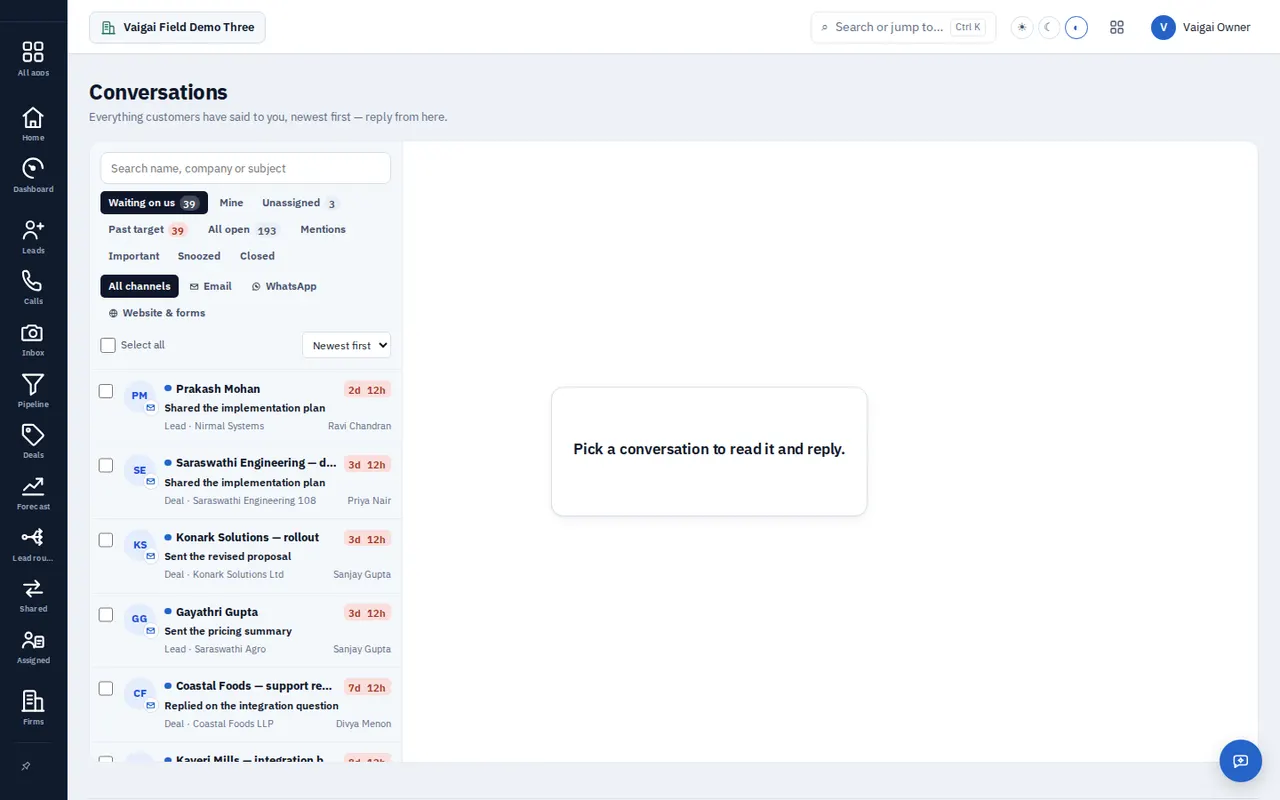
SimplCRM’s Conversations inbox gathers customer email, WhatsApp and website enquiries into one shared list, one conversation per lead, deal, contact or company. The team can assign a conversation, snooze it, star it as important, mark it read or unread — singly or several at once — and reply by email, by WhatsApp from their own linked number, or with an internal note. It works the same in the web app and the phone app.
See who is waiting on a reply
The default view is the customers who wrote last and have not heard back, with how long each has waited, the record it is on and the person who owns it.
- One thread
Email and WhatsApp together
A customer who emails the quotation and then WhatsApps a photo is one conversation on one record, not two threads in two apps that a colleague has to stitch together.
- Bulk
Tick several, act once
Select a run of conversations and mark them read, unread, important or not important together. On the phone, hold one down to start ticking.
- Reply
Answer the way they wrote
A WhatsApp gets a WhatsApp from your linked number; an email gets a threaded email reply. An internal note, with colleagues named, goes to the team only.
The same inbox in the SimplCRM app
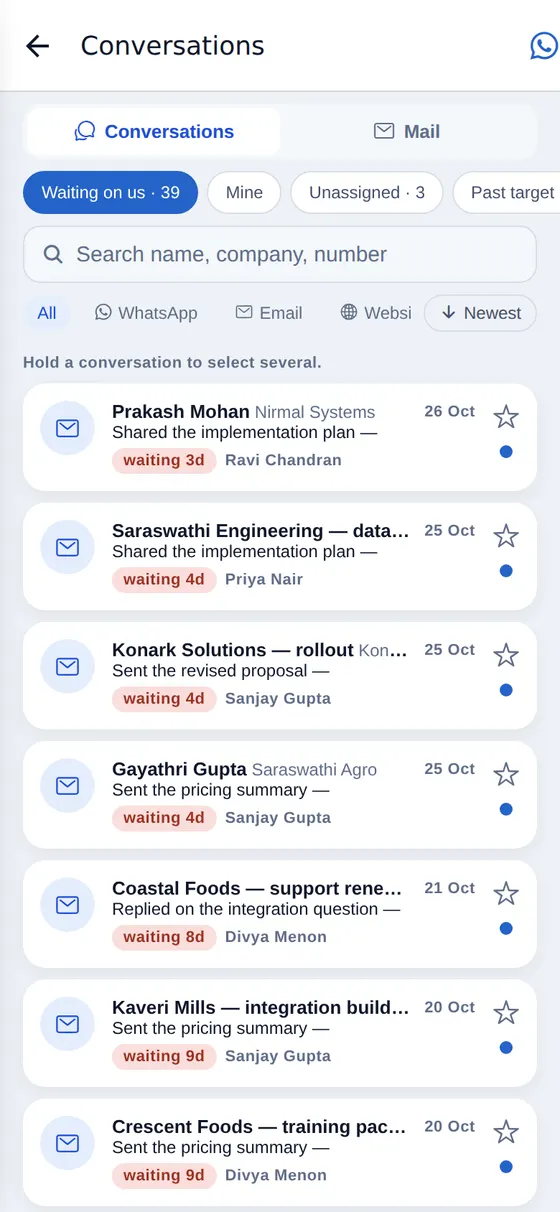
Conversations and Mail as two tabs, the same views, a channel filter, and how long each customer has been waiting, with the person looking after it.
- Select
Hold to pick several
Hold a conversation down to start selecting, then mark the lot read, unread, important or not important.
- Star
Important, one tap
The star on each row marks a conversation important for the whole team, and the Important view gathers them.
- WhatsApp
Link your number from here
The WhatsApp button at the top opens My WhatsApp, where a person links their own number with a pairing code — no computer needed.
What the inbox covers
- Channels
- Email both ways, WhatsApp, and enquiries from a website, hosted form or lead ad
- Email accounts
- Gmail and Microsoft by sign-in; other providers over IMAP
- Each person’s own number, linked by QR code or by pairing code to a phone number
- Filed on
- The lead, deal, contact or company the conversation is about
- Views
- Waiting on us, Mine, Unassigned, Past target, All open, Mentions, Important, Snoozed, Closed
- Order
- Newest or oldest first, remembered on each browser and phone
- Bulk actions
- Mark read, unread, important or not important for every ticked row
- Mail view
- The synced mailbox: received, sent, starred and important, with labels to filter by
- Files
- Approved Library files sent by WhatsApp or email; WhatsApp attachments to 16 MB
The questions a sales team asks about a shared inbox
How do I connect WhatsApp to a CRM?
In SimplCRM each person links their own number from Conversations, the way WhatsApp Web is linked: scan a QR code on a computer, or, on the phone app, enter the number and type the pairing code WhatsApp shows. From then on a message to or from a lead or contact whose number is in the CRM is filed on that record, and replies written in the inbox leave from that person’s number. It uses WhatsApp’s linked-devices feature rather than Meta’s Business API, which WhatsApp does not officially support, and the screen says so before anybody links — it suits conversations with people who know you, not bulk messaging.
Are personal WhatsApp chats copied into the CRM?
No. Only messages with somebody the CRM already knows, by their phone number on a lead or a contact, are filed. Family, friends and groups are dropped where they arrive: not stored, not logged and not shown to anybody else in the workspace.
How does email get into the inbox?
Each person connects their mailbox — Gmail or Microsoft by signing in, anything else over IMAP — and mail is synced in both directions and filed on the record of the person it is with. Files that came with an email are kept on it. By default mail from people not in the CRM is left out; the Mail view counts what was seen and not filed, so nothing disappears silently.
How do I know which customers are waiting too long?
The Waiting on us view lists conversations where the customer wrote last, sorted by how long they have waited, and Past target narrows it to those beyond the first-response target the workspace sets for leads. Assign one to a colleague, snooze it until a time — it comes back sooner if the customer writes again — or close it when it is done.
What is the difference between Conversations and Mail?
Conversations is one thread per customer record across every channel, built for replying. Mail is the synced mailbox itself, message by message, with Everything, Received, Sent, Starred and Important boxes and labels you add to a message and filter by. Both are on the web and in the phone app.
Questions people ask
What is the Conversations inbox in SimplCRM?
It is a shared inbox that gathers every customer conversation in one list — email both ways, WhatsApp, and enquiries from a website, a hosted form or a lead ad — with one conversation per lead, deal, contact or company. Opening one shows the whole exchange beside the team’s notes, and the reply goes from the same screen.
Can SimplCRM receive WhatsApp messages?
Yes. Each person links their own WhatsApp number as a linked device — by QR code on the web, or by a pairing code sent to their phone number from the phone app. Messages to or from a lead or contact whose number is in the CRM are filed on that record; chats with anybody else are not read into the CRM at all.
Which email accounts can be connected?
Gmail and Microsoft accounts connect by signing in, and other providers connect over IMAP. Mail is synced both ways and filed on the record of the person it is with; by default only mail from people already in the CRM is kept, so a salesperson’s bank and family stay out of it.
Can I mark several conversations read or important at once?
Yes. Tick conversations in the list — or hold one down on the phone — and mark them read, unread, important or not important together. The list can be sorted newest or oldest first, and the order you choose is remembered.
Who can see a conversation?
Only people who can open the record it belongs to. The inbox is read from the records’ own timelines, so branch and ownership rules apply to it unchanged: somebody who cannot see a lead cannot read or act on its conversation. Read and unread are kept per person.
Related
Put the team’s customer messages in one place.
Connect a mailbox and link a WhatsApp number, and the next enquiry lands on the record it belongs to.